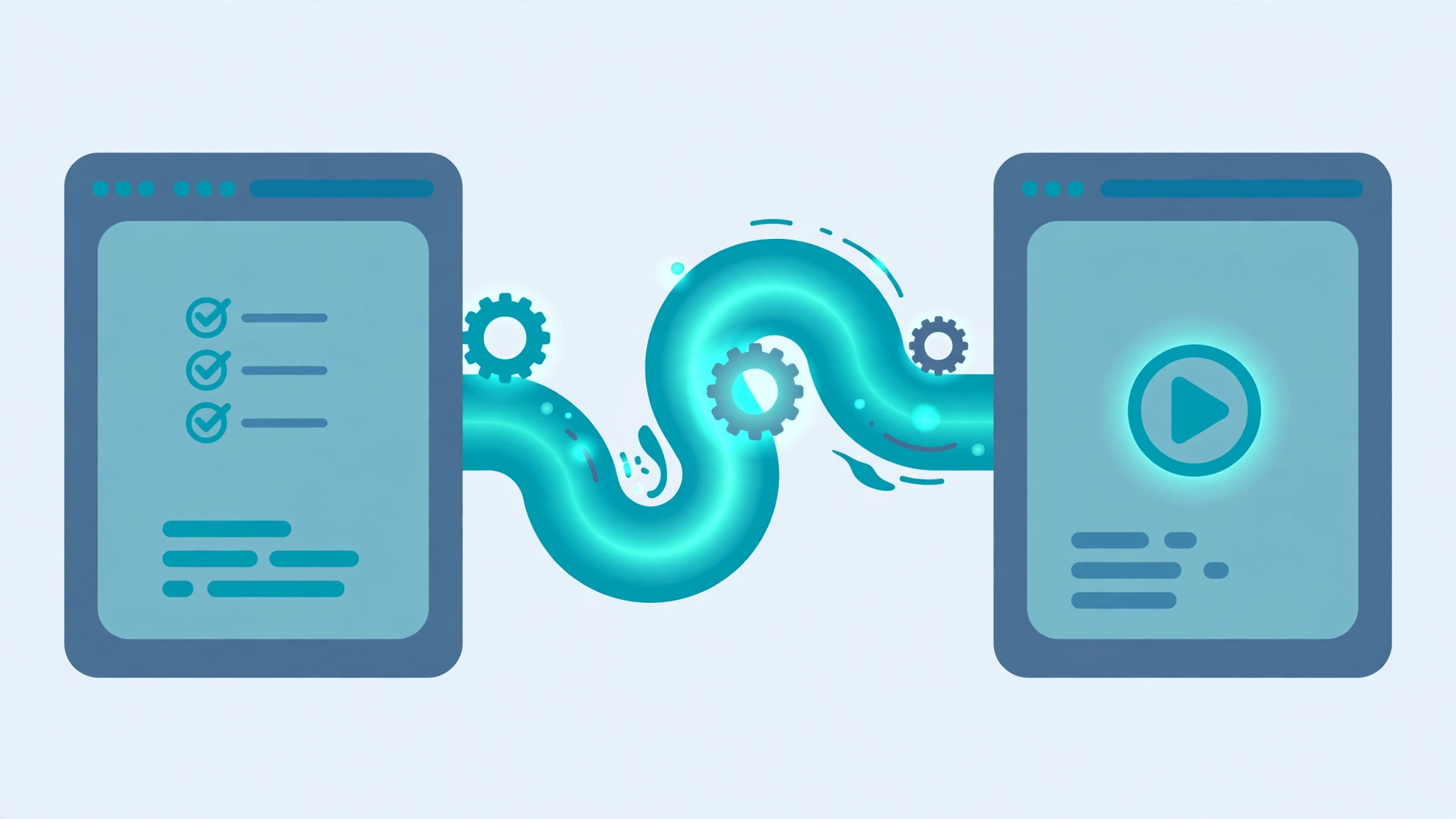
Quick answer: Zapier connects the apps you already use so work moves between them automatically, without code. You build a Zap: a trigger event in one app, such as a new form entry, starts actions in other apps, such as adding a spreadsheet row and sending a Slack message. You can set up a first Zap in under an hour.
What Zapier Is, in Plain Language
Zapier is an automation tool that lets apps talk to each other. Normally, when a customer fills in a form, someone has to copy that information into a spreadsheet, notify the team, and update the CRM. Zapier does those handoffs for you, instantly and without mistakes from retyping.
The core idea is simple. You do not need to write code, and you do not need to change the apps you already use. Zapier sits between them and passes information along according to rules you define.
The Two Building Blocks: Triggers and Actions
Every automation in Zapier is called a Zap, and every Zap has two parts.
The Trigger
The trigger is the event that starts the automation. Examples include a new row in Google Sheets, a new form submission, a new email with a certain label, or a new sale in your online store. One trigger starts one Zap. If nothing triggers it, the Zap sits idle and does nothing.
The Action
The action is what Zapier does after the trigger fires. A Zap can have one action or several, in sequence. For example, a new Typeform entry can trigger three actions: add a contact to your CRM, post a message in Slack, and create a task in Asana. The information from the trigger flows into each action, so names, emails, and amounts carry over automatically.
Your First Zap, Step by Step
Step 1: Pick One Annoying Repetitive Task
Do not start with your most complicated process. Pick one small task you repeat every week, such as saving email attachments to Drive or logging new leads in a sheet. Small wins teach you the tool and build confidence.
Step 2: Choose the Trigger App and Event
In Zapier, click Create Zap, choose the app where the work starts, and pick the trigger event. Zapier will ask you to connect the app by signing in and granting permission. This is safe and standard: Zapier can only access what you authorize, and you can revoke access at any time.
Step 3: Add the Action
Choose the app where the information should land and the action it should take, such as “Create Spreadsheet Row” or “Send Channel Message.” Map the fields: tell Zapier which piece of trigger data goes into each field, like putting the form’s email field into the sheet’s email column.
Step 4: Test Before You Turn It On
Zapier lets you test each step with real sample data from your connected app. Always test. A test shows you exactly what will be created, so you catch mapping mistakes before the Zap runs on live data. Only publish the Zap after a clean test.
Three Beginner Mistakes to Avoid
First, building a giant Zap on day one. Long multi-step Zaps are harder to debug. Start with two or three steps, get them reliable, then expand.
Second, skipping the test step. An untested Zap can create hundreds of wrong records before anyone notices. Test every time, even for small changes.
Third, automating a broken process. If the manual process is confusing, the automation will faithfully reproduce the confusion. Fix the process on paper first, then automate it.
What Zapier Costs
Zapier offers a free plan with a limited number of automated runs (called tasks) per month, which is enough to learn the tool and run one or two small Zaps. Paid plans raise the task limit and unlock multi-step Zaps, premium apps, and faster update speeds. Check Zapier’s current pricing page before committing, because plans and limits change, and start small: pay only for the volume you actually use.
A Simple First Week With Zapier
Day one, connect two apps you use daily and build one simple Zap. Day two, watch it run and fix anything that looks wrong. By the end of the week, add a second Zap for a different task. Within a month, most beginners have three to five Zaps quietly handling routine handoffs, and the time saved is easy to measure: multiply the minutes each manual task took by how often it happened.
Do I need to know how to code to use Zapier?
No. Zapier is built for non-developers. You pick apps, events, and fields from menus. The only “technical” skill involved is thinking clearly about what should happen when: if this event occurs, do that action.
How is a Zap different from an app integration?
Many apps have one built-in integration with one other app. Zapier connects thousands of apps in combinations the app makers never built, and lets you chain several steps together across multiple apps in a single workflow.
What happens if a Zap fails?
Zapier logs every run. If a step fails, you get an error message explaining which step and why, such as a missing field or a disconnected account. You can fix the issue and replay the failed run, so no data has to be re-entered by hand.
Is it safe to connect my apps to Zapier?
Zapier uses official connections and standard authorization, the same way you sign in with Google elsewhere. It can only access the apps and data you explicitly connect. Review your connected accounts regularly and remove any you no longer use.
Can I automate tasks between apps Zapier does not list?
If an app is not supported, Zapier offers webhooks and email-based triggers as workarounds, and many unsupported apps can still send or receive data that way. For a fully custom connection, a tool like Make or n8n may fit better — see our comparison of Zapier vs Make vs n8n.

Pingback: Notion Automations: A Practical Guide to Databases That Run Themselves - FlowWise